▥ CatalogOps

PRODUCT STORYTELLING / INDEPENDENT PROJECT / 2026

Check first.
Import second.

A complete content campaign that turns a technical CSV workflow into a clear, useful product story.

Strategy · English copy · Visual design · Production planning

Independent portfolio campaign. CatalogOps is a self-initiated project. Product examples use fictional data. These assets have not been published as a live campaign; no audience, revenue or conversion results are claimed.

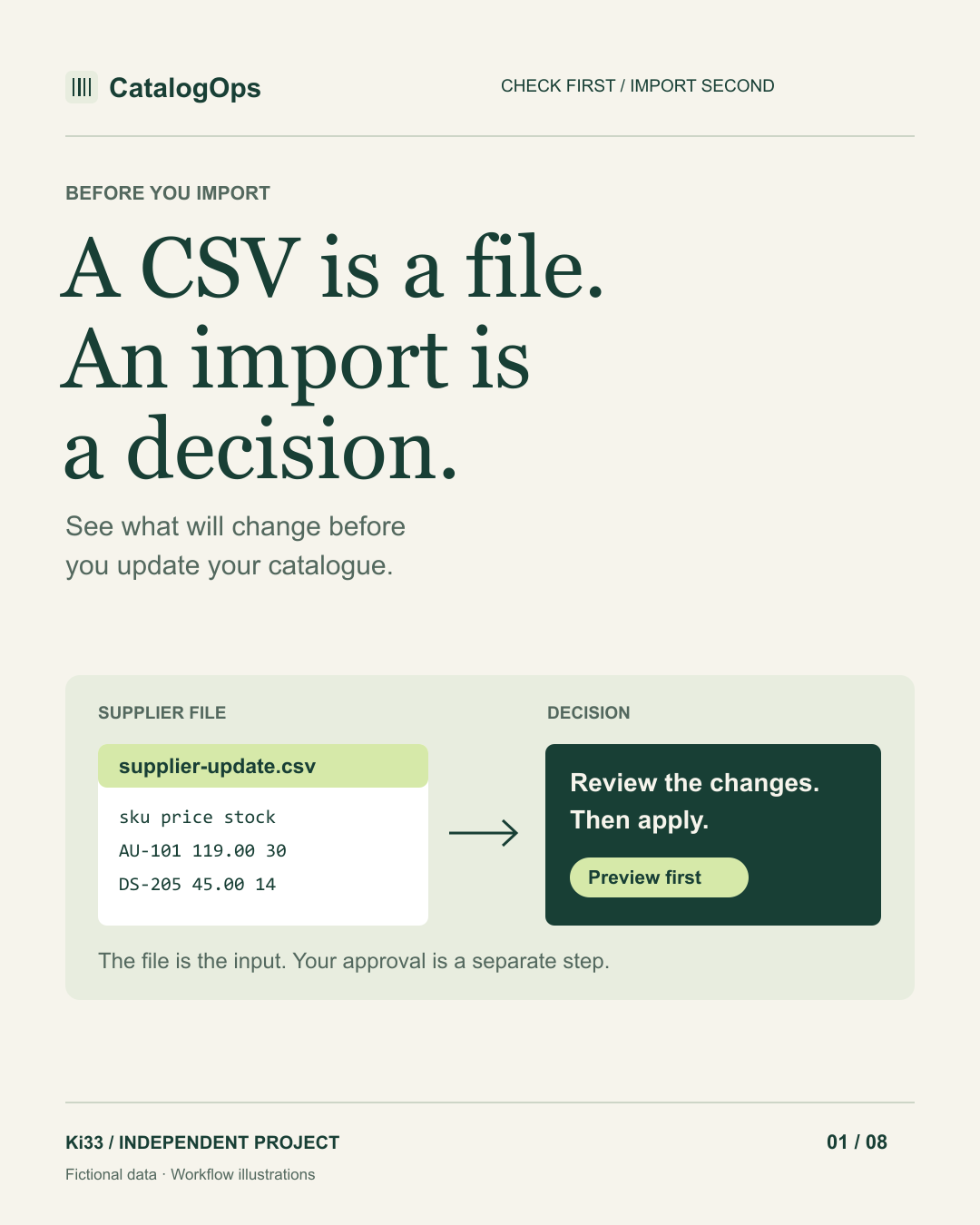
CatalogOps campaign cover: A CSV is a file. An import is a decision. A supplier CSV moves into a review step before the catalogue.01 / 08 — THE CORE IDEA
01 / THE BRIEF

A familiar file.
A considered decision.

Audience

Small e-commerce teams and store owners who receive product, price and stock updates in CSV files.

The problem

A file can look ready while still containing duplicate SKUs, missing names or invalid stock values. The operator needs to know what will change before applying an update.

Objective

Help a prospective client understand a real product workflow and encourage an intentional visit to the working demo.

Positioning

A focused catalogue workspace that makes CSV updates visible before they are applied.

Creative direction

Editorial typography, forest green, warm paper and spreadsheet-inspired diagrams. The visual sequence moves from a familiar CSV file to a considered import decision.

Voice

Clear, calm and specific. Explain the workflow with visible examples. Avoid hype, invented business results and claims of production integrations.

ONE MESSAGE ACROSS EVERY FORMAT

See what will change
before you make the change.

Primary action: Try the sample import.
03 / SOCIAL COPY + CAMPAIGN BANNERS

Introduce it.
Explain it. Prove the behaviour.

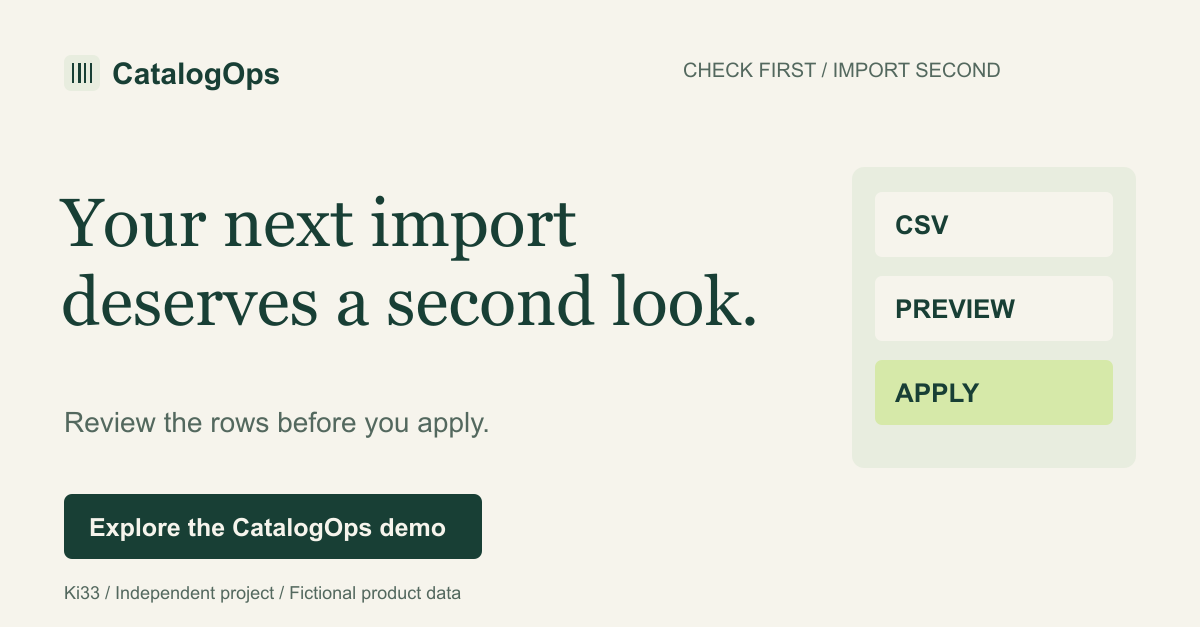
Your next import deserves a second look.
LinkedIn / product introduction

The useful step before Import

A supplier sends a CSV. You need to update your product catalogue.

Before clicking Import, there is a useful question to ask: what will this file actually change?

CatalogOps is my independent catalogue-operations project. It matches products by SKU, validates incoming rows and separates the preview from the apply step.

In the initial valid sample, four rows produce:
- 1 new product
- 2 updates
- 1 unchanged product
- 0 invalid rows

You can inspect those rows before saving the batch. There is also a deliberately invalid sample to explore what gets blocked.

Try the sample import: https://spectacular-jalebi-c45e30.netlify.app/catalogops/?utm_source=linkedin&utm_medium=organic_social&utm_campaign=catalogops_check_first&utm_content=01

The public demo runs in your browser with fictional data. It does not connect to a live store.

#Ecommerce #ProductDesign #WebDevelopment

Download banner PNG ↗
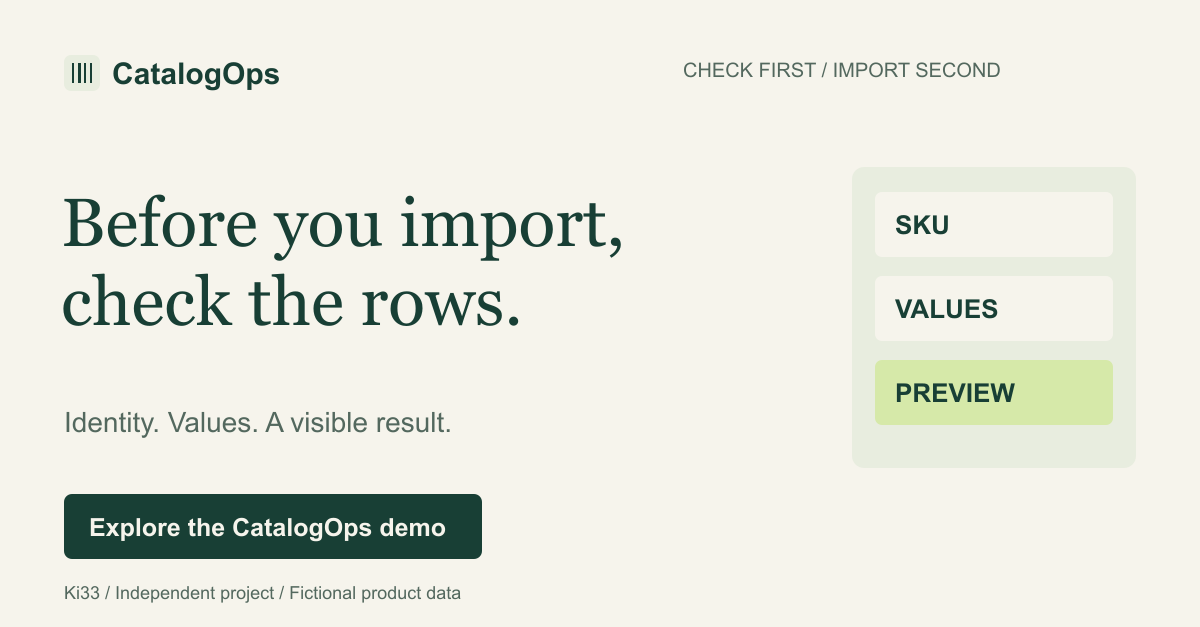
Before you import, check the rows.
LinkedIn / educational

Three CSV checks worth making

Three checks I would put before a catalogue import:

1. Identity
Does each row have the right SKU? Are any SKUs repeated within the file? A product name alone is not a dependable identifier.

2. Valid values
Is the product name present? Is the price in the expected format? Is stock a non-negative whole number?

3. A visible result
Which rows will add products, update them or leave them unchanged? Can the operator inspect that before applying anything?

I built these checks into CatalogOps as a small, focused product workflow. The error sample deliberately includes a repeated SKU, a missing name and invalid numeric values.

Explore the error sample: https://spectacular-jalebi-c45e30.netlify.app/catalogops/?utm_source=linkedin&utm_medium=organic_social&utm_campaign=catalogops_check_first&utm_content=02

Independent browser demo using fictional product data.

#EcommerceOperations #UXDesign #WebDevelopment

Download banner PNG ↗
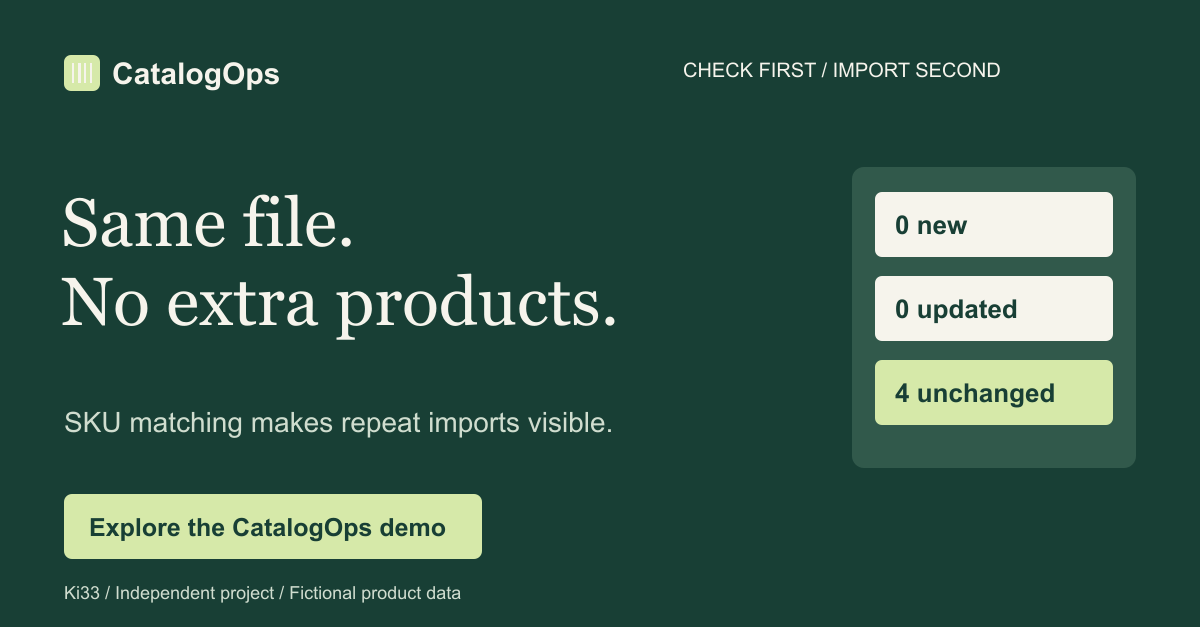
Same file. No extra products.
LinkedIn / technical trust

What happens when the same file returns?

What happens when someone imports the same supplier file twice?

In CatalogOps, SKU matching makes that question visible.

Apply the initial four-row sample once. Then preview exactly the same file again. The result is:
- 0 new rows
- 0 updated rows
- 4 unchanged rows

That is a small interaction with a clear purpose: an unchanged file should not become extra products.

The project includes a browser demo and a separately downloadable PHP/SQLite implementation. Netlify hosts the browser demo; it does not run the PHP backend.

Try the workflow: https://spectacular-jalebi-c45e30.netlify.app/catalogops/?utm_source=linkedin&utm_medium=organic_social&utm_campaign=catalogops_check_first&utm_content=03

Independent project. Fictional data. The figures above describe the sample import, not customer or campaign results.

#PHP #Ecommerce #SoftwareDevelopment

Download banner PNG ↗

EDUCATIONAL ARTICLE / ORIGINAL ENGLISH COPY

Before you import a product CSV, check what will change

A supplier file arrives. It contains new stock levels, revised prices and a few new products. The next action looks obvious: import it. But opening a CSV successfully does not tell you whether its rows are valid, whether they match the right products or what an update will do to your catalogue. Those are separate questions. A deliberate import workflow answers them before anything is applied.

Start with product identity

Before reviewing a price change, establish which product the row describes. Names can change, and different products can have similar names. In CatalogOps, the SKU is the matching key: an existing SKU updates its product, while a new SKU adds a product.

That also makes duplicate SKUs inside the incoming file worth checking. Two rows that point to the same product can carry conflicting instructions. Treat that as a problem to resolve in the source file, rather than a detail to discover after importing.

Validate the values, not just the column headings

The sample CSV uses five columns: sku, name, category, price and stock. Having those headings is a useful start, but each row still needs attention. A name can be missing. A price can use an invalid format. Stock can be negative or contain text where a whole number is expected.

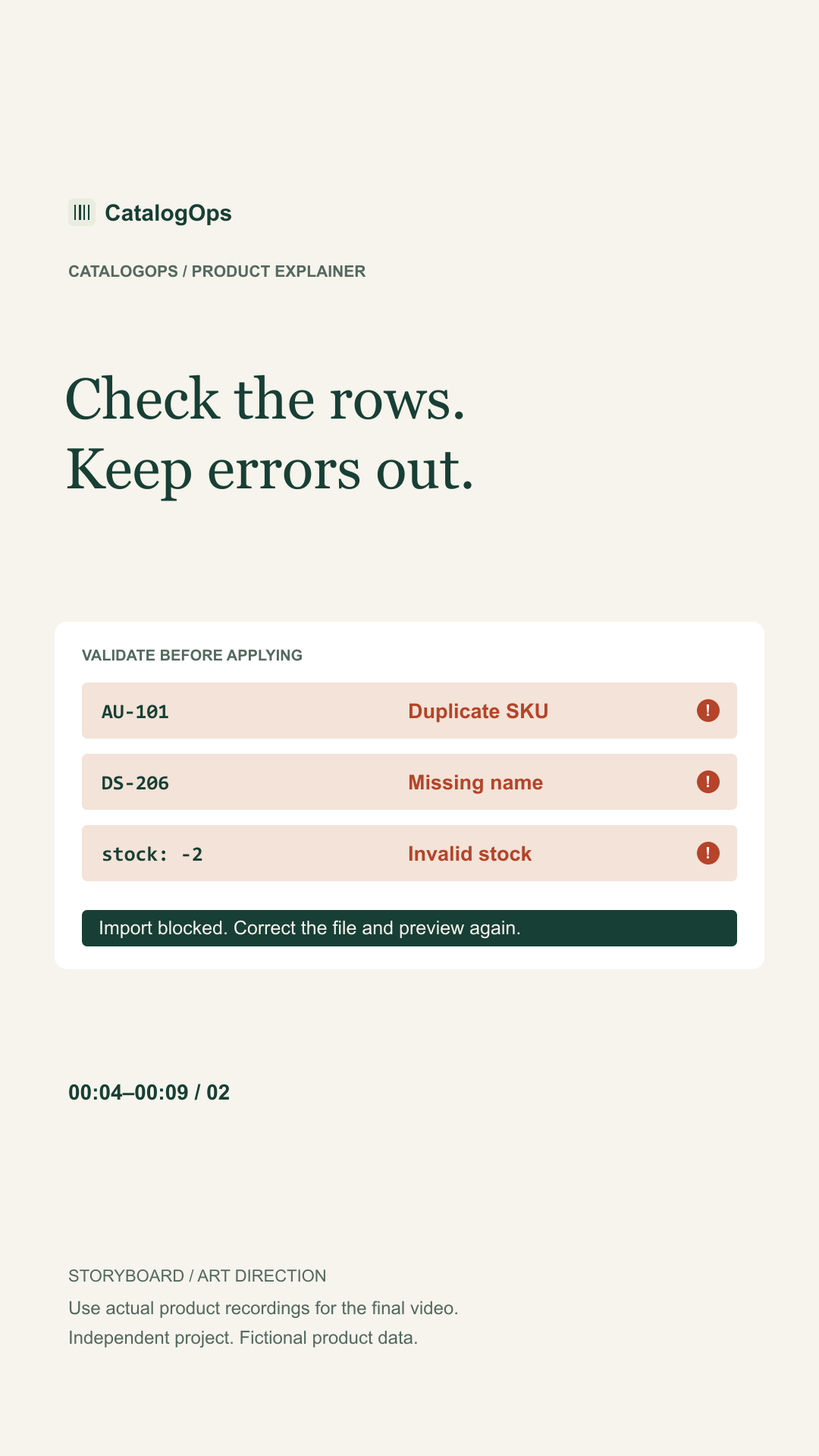
CatalogOps includes a deliberately invalid sample so this behaviour can be explored directly. It contains a repeated SKU, an empty product name, a price with excessive decimal precision, negative stock and a stock value written as “ten”. The point is to make errors visible while there is still an opportunity to correct the file.

Separate the preview from the decision to apply

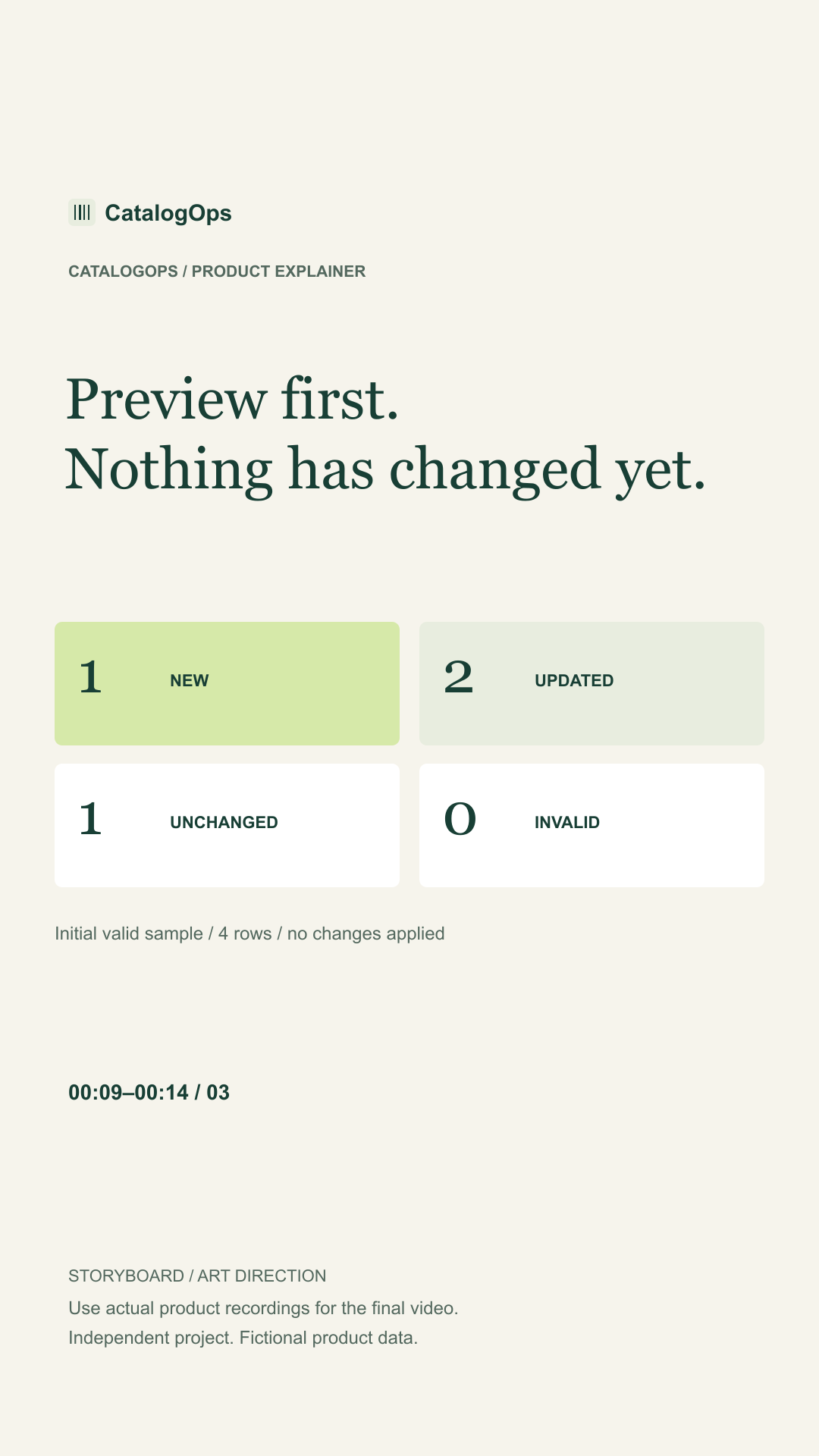
A preview should answer a simple question: what would happen if this file were applied? It should not quietly perform the update. In CatalogOps, the initial valid sample is classified as one new product, two updates, one unchanged product and zero invalid rows. The catalogue remains unchanged while that preview is being reviewed.

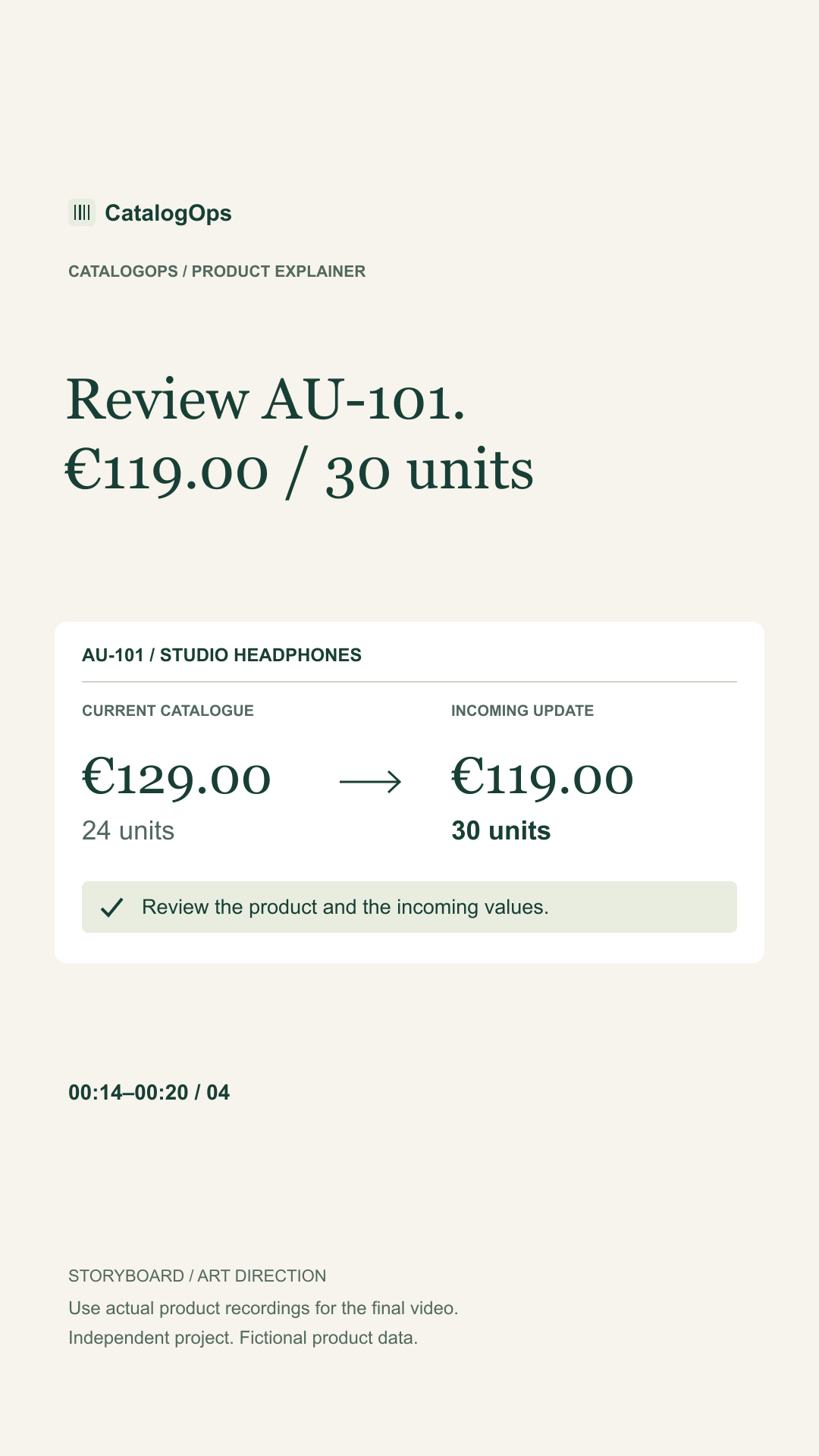
For a concrete example, the sample updates SKU AU-101, Studio headphones. Its price changes from €129.00 to €119.00, and stock changes from 24 to 30 units. These are fictional values, but the decision is realistic: the operator needs to check the intended product and the incoming values before approving the batch.

Resolve errors before applying the batch

A file that contains invalid rows should not look ready for approval. CatalogOps blocks applying a file with validation errors. Correct the source data, preview it again and review the revised result before applying it.

When a valid batch is applied, the demo records an import summary in the Activity view. This provides a place to inspect what happened after approval. It is a record of the update, not a substitute for checking the preview beforehand.

Try the same file twice

Repeated imports are a useful way to inspect matching behaviour. Start with the initial catalogue, apply the valid sample, then load that same sample and preview it again. In this example, the second preview shows zero new products, zero updates and four unchanged rows.

This is why the SKU rule matters beyond the first import. An unchanged source file is matched against existing products instead of being treated as a new set of products each time. If you deliberately change a price or stock value in the file, that is a different update and should be reviewed as such.

Explore the workflow yourself

Open CatalogOps and choose “Try a sample import”. Preview the valid file before applying it. Then explore the error sample and compare what the interface allows. You do not need a live store or a sign-up to try the public demo.

CatalogOps is an independent portfolio project. The Netlify version runs locally in the browser with fictional data, and imports stay on that device. A PHP/PDO and SQLite implementation is available separately from the project page. The public demo is not a hosted PHP application, a payment service or an ERP integration.

Before you apply

  • Confirm the matching key and check for duplicate SKUs.
  • Check required values, price format and stock values.
  • Review new, updated, unchanged and invalid rows.
  • Correct errors and generate a fresh preview.
  • Apply the valid batch deliberately, then inspect its activity record.
Try the CatalogOps sample import ↗
05 / LANDING-PAGE COPY / READY TO ADAPT

Your next import deserves a second look.

Match products by SKU, check incoming rows and review the result before applying a CSV update. Explore the workflow in the CatalogOps browser demo.

Try the sample import ↗Read the import checklist ↓

No sign-up. Fictional product data. Changes stay in your browser.

A spreadsheet is only the starting point.

A missing name, a repeated SKU or an invalid stock value can turn a routine update into a question mark. Make the matching rules and the intended changes visible before applying the file.

01

Add the file

Load a built-in sample, paste CSV content or choose a file with the expected columns.

02

Review the rows

Inspect which rows are new, updated, unchanged or invalid. Correct errors before applying anything.

03

Apply deliberately

Approve a valid batch, then inspect the import summary in Activity.

A small sample. A visible decision.

From the initial catalogue, the valid sample produces 1 new product, 2 updates and 1 unchanged row. Preview it without changing the catalogue. After applying it, preview the same file again: all 4 rows are unchanged.

See the change before you make it.

Try both sample files. Compare the previews. Decide when to apply.

Does the public demo connect to my store?

No. The browser demo uses fictional data and saves changes on your device. It has no live store, payment or external ERP connection.

Can I inspect the backend implementation?

Yes. The product page links to a downloadable PHP/PDO and SQLite application and backend test results. The Netlify preview itself does not execute PHP.

What CSV structure does this demo expect?

The columns are sku, name, category, price and stock. The interface specifies UTF-8, a maximum file size of 256 KB and up to 500 products.

Independent project by Oleg Gainutdinov / Ki33. This page is campaign copy for a portfolio demonstration, not a subscription offer.

06 / VIDEO PRODUCTION PLAN

Thirty seconds.
One actual workflow.

1080 × 1920 / 9:16 / 30 fps
Script + six storyboard frames.
No finished video is included.

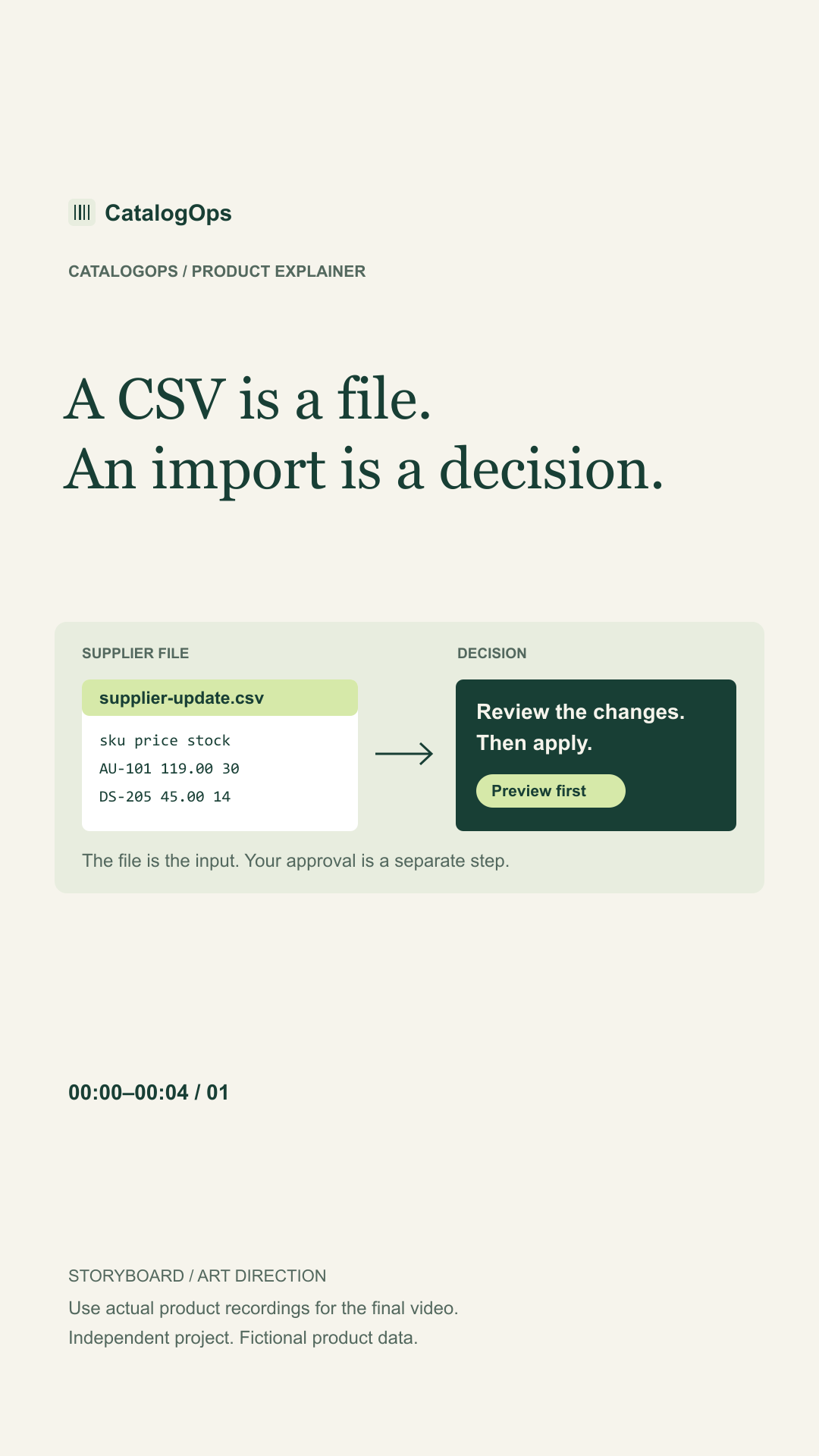
Storyboard 1: A CSV is a file. An import is a decision.00:00–00:04

Voiceover: A CSV is a file. An import is a decision.

Show the initial catalogue, then the CSV header sku,name,category,price,stock. Reset the demo only before recording this initial state.

Storyboard 2: Check the rows. Keep errors out.00:04–00:09

Voiceover: Check the rows. Keep errors out.

Import CSV → Load sample with errors → Preview changes. Crop to the validation result and disabled Apply control. Wait for the actual result to appear before capturing.

Storyboard 3: Preview first. Nothing has changed yet.00:09–00:14

Voiceover: Preview the update before anything changes.

Load valid sample → Preview changes. Show the initial summary: 1 new, 2 updated, 1 unchanged, 0 invalid.

Storyboard 4: Review AU-101. €119.00 / 30 units00:14–00:20

Voiceover: Review the incoming price and stock. Then apply the valid batch.

Highlight the actual AU-101 row in the preview. Click Apply 4 rows once, then capture Activity showing 1 new, 2 updated and 1 unchanged.

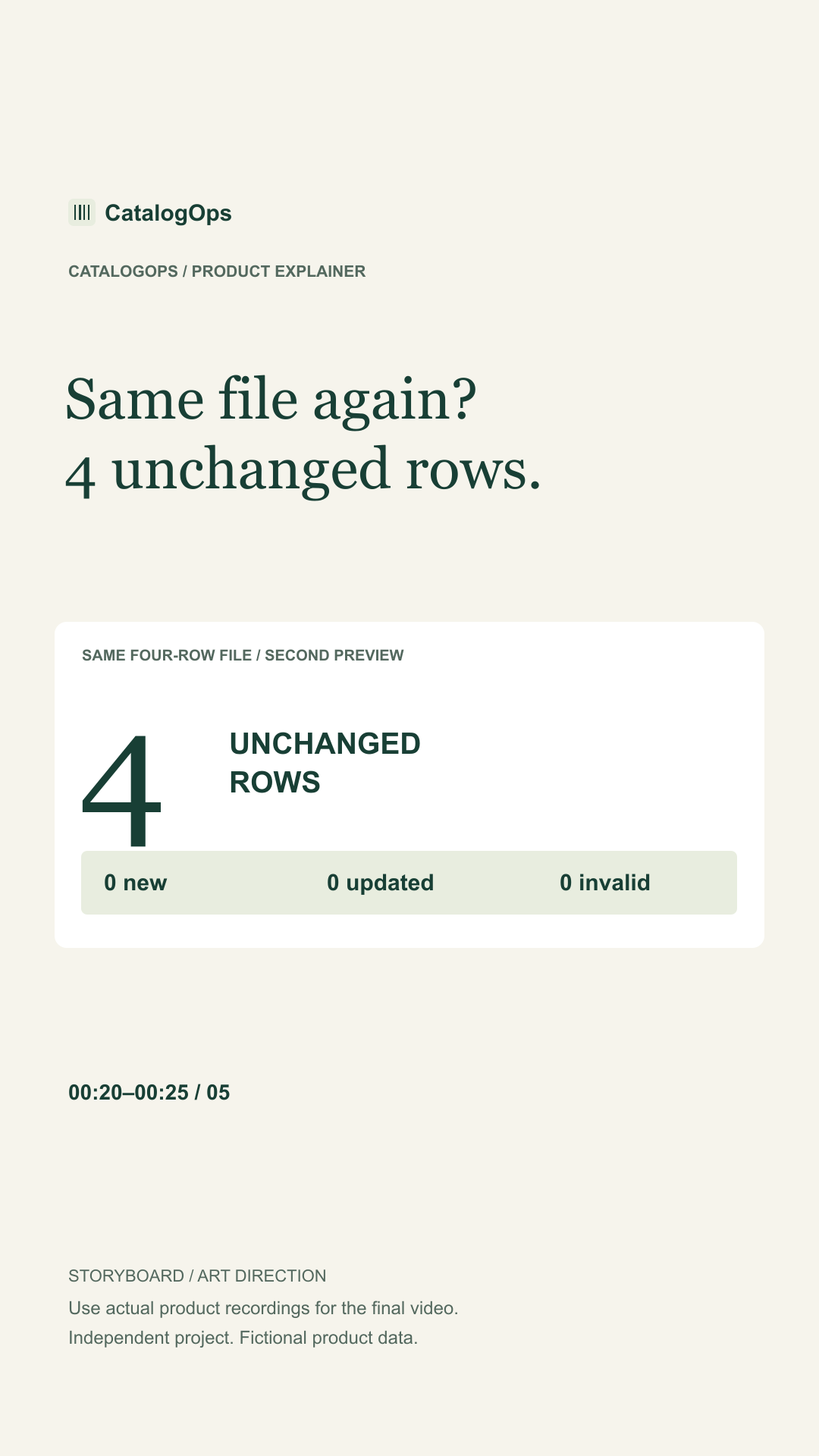
Storyboard 5: Same file again? 4 unchanged rows.00:20–00:25

Voiceover: Preview the same file again: four unchanged rows.

Try a sample import → Preview changes after the first apply. Record 0 new, 0 updated, 4 unchanged, 0 invalid. Do not reset between these two imports.

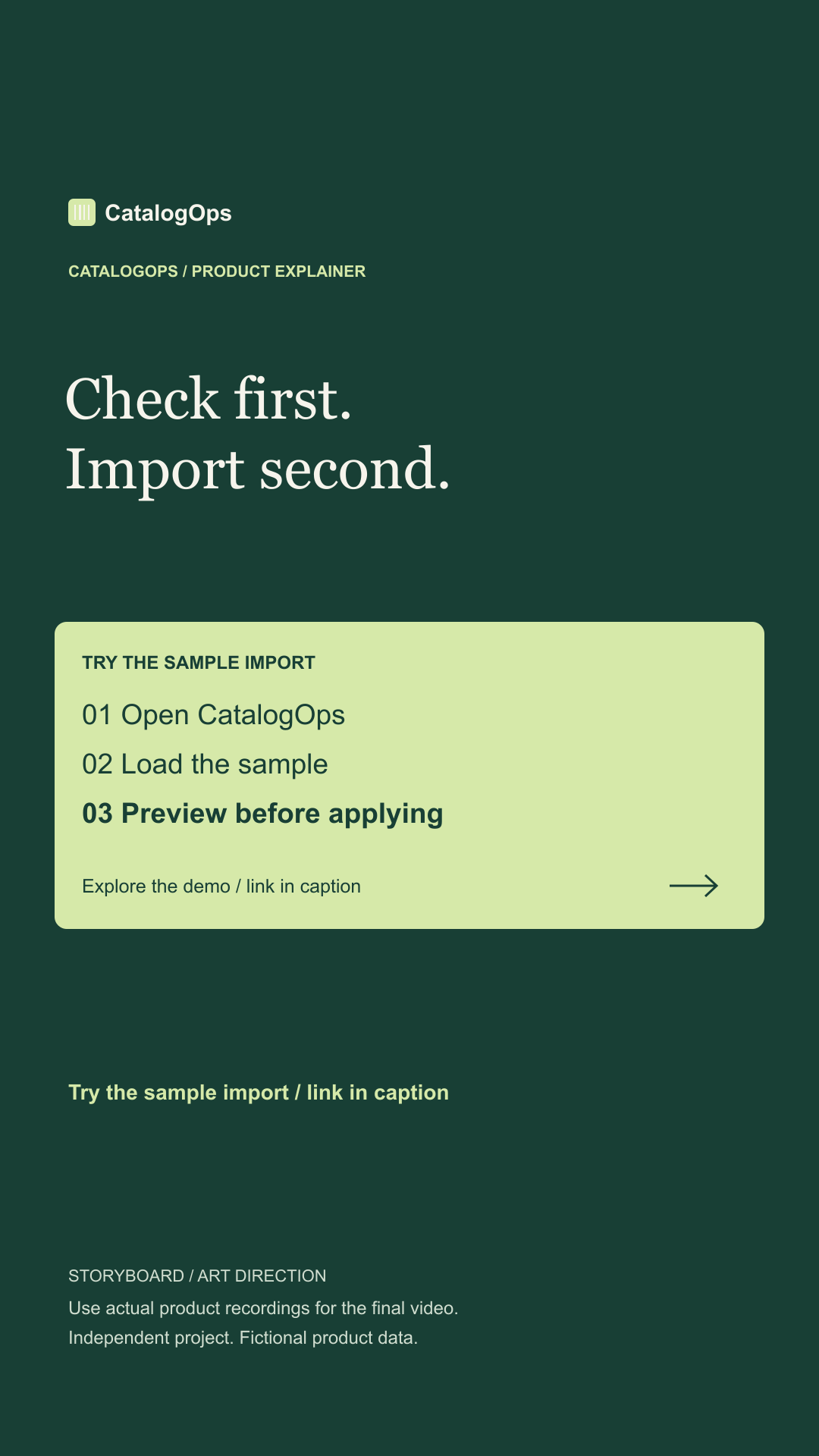
Storyboard 6: Check first. Import second.00:25–00:30

Voiceover: Explore CatalogOps. Try the sample import.

End card: CatalogOps / Try the sample import / Independent browser demo. Fictional data. Put the working demo link in the post caption.

Recording and editing direction

Use actual screen recordings of the browser demo, with tight crops and the original UI proportions. The vertical storyboard cards are art direction, not product screenshots. Use restrained cuts and brief field highlights. Keep meaningful text within x=90–990 and y=250–1500. No simulated cursor clicks, fabricated screens or unlicensed audio. Voiceover is optional; captions must carry the full explanation.

A closer look at a catalogue update: validate the rows, preview the changes and apply deliberately. Explore my independent CatalogOps demo: https://spectacular-jalebi-c45e30.netlify.app/catalogops/?utm_source=instagram&utm_medium=organic_social&utm_campaign=catalogops_check_first&utm_content=video

Fictional product data. Browser demo; no live store connection.

07 / PROPOSED ROLLOUT

Each asset has a job.

A proposed seven-day sequence, not a scheduled or published campaign.

WhenChannelAssetPurpose
Day 1LinkedInPost 01 + banner 01Introduce the review-before-apply workflow
Day 2Portfolio / blogEducational articleExplain the checks with a concrete sample
Day 3Instagram / LinkedIn documentEight-slide carousel + captionMake the workflow easy to follow visually
Day 4LinkedInPost 02 + banner 02Teach three practical CSV checks
Day 5Reels / Shorts30-second video script and storyboardGuide production of a real workflow recording
Day 6LinkedInPost 03 + banner 03Show repeat-import behaviour
Day 7Existing opted-in newsletterEmail copyInvite existing readers to explore the demo

What to measure if published

  • Tagged-link clicks and demo landing visits by channel and asset.
  • Visits that trigger the sample-import action.
  • Sample-import visits that reach a preview.
  • Valid previews followed by an explicit apply action.

Proposed measurement plan. No results are available and no tracking has been installed.

A useful interpretation

  • Separate the valid and invalid sample paths. A blocked invalid file is expected behaviour, not an abandoned valid import.
  • Deduplicate repeated events within a session when reporting funnel conversion.
  • Use the same reporting window across assets. Report sample size alongside rates.
  • Do not collect uploaded CSV contents, product values or personal information in analytics.
Example newsletter copy

Subject: Before your next CSV import, take a second look

Preheader: A small demo of SKU matching, validation and deliberate updates.

A product CSV can open correctly and still contain rows you would not want to apply.

CatalogOps makes the review step visible. Load the sample, check which rows are new or updated, and inspect any validation errors before applying the batch.

You can also try the same valid file twice. After the first import, its four rows are unchanged on the second preview.

Explore the demo: https://spectacular-jalebi-c45e30.netlify.app/catalogops/?utm_source=newsletter&utm_medium=email&utm_campaign=catalogops_check_first&utm_content=email

No sign-up is required. The public demo uses fictional data and saves changes only in your browser.

Oleg / Ki33

Example newsletter copy. No mailing list, delivery automation or email sending has been set up.

08 / HANDOFF

Made to review.
Ready to adapt.

Original copy, export-ready graphics and editable sources in one package.

Download the complete kit ↗Инструкция на русском ↗