04 / LONG-FORM CONTENTClear explanations.
Specific examples.
A working product.
Download article ↗ EDUCATIONAL ARTICLE / ORIGINAL ENGLISH COPY
Before you import a product CSV, check what will change
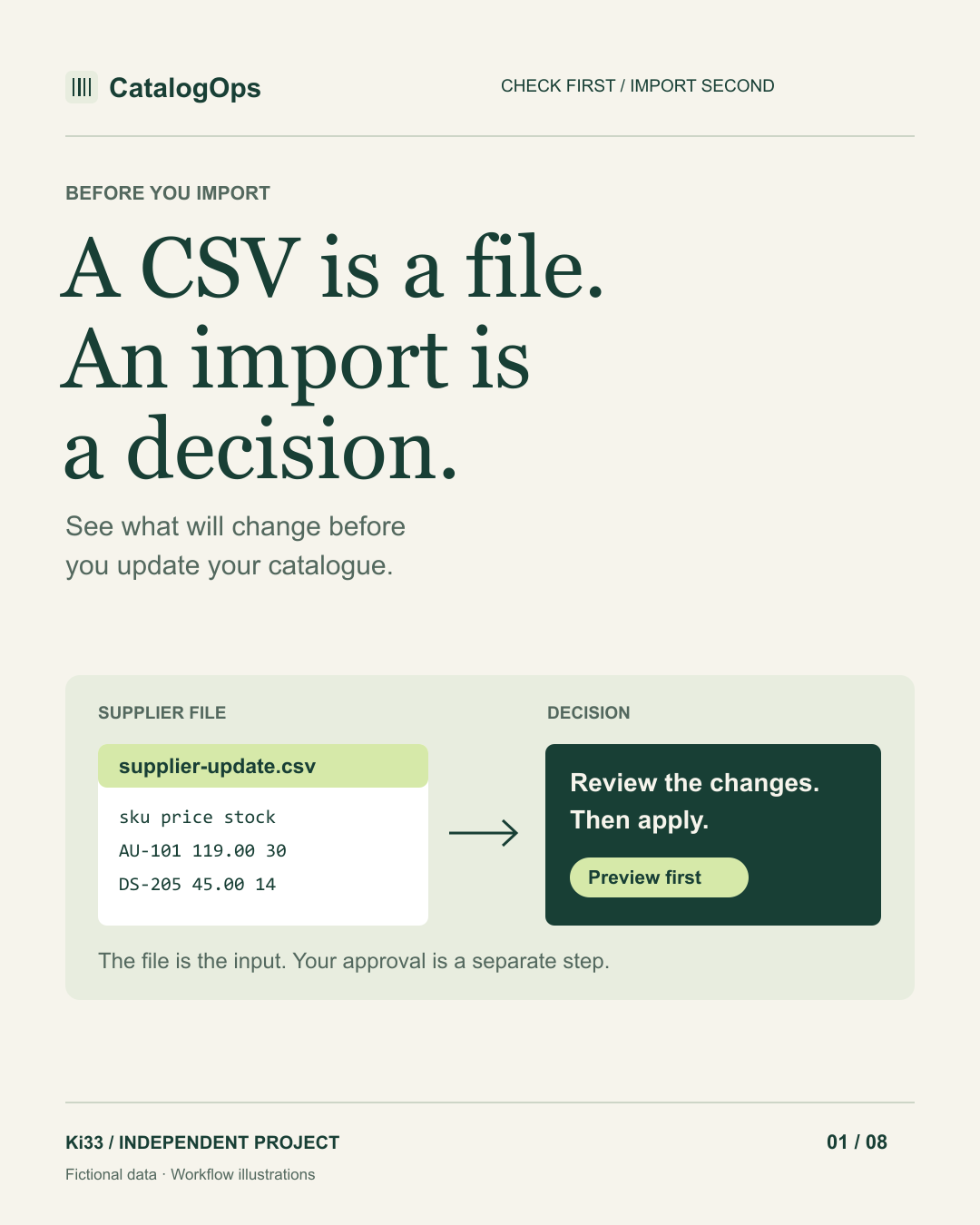
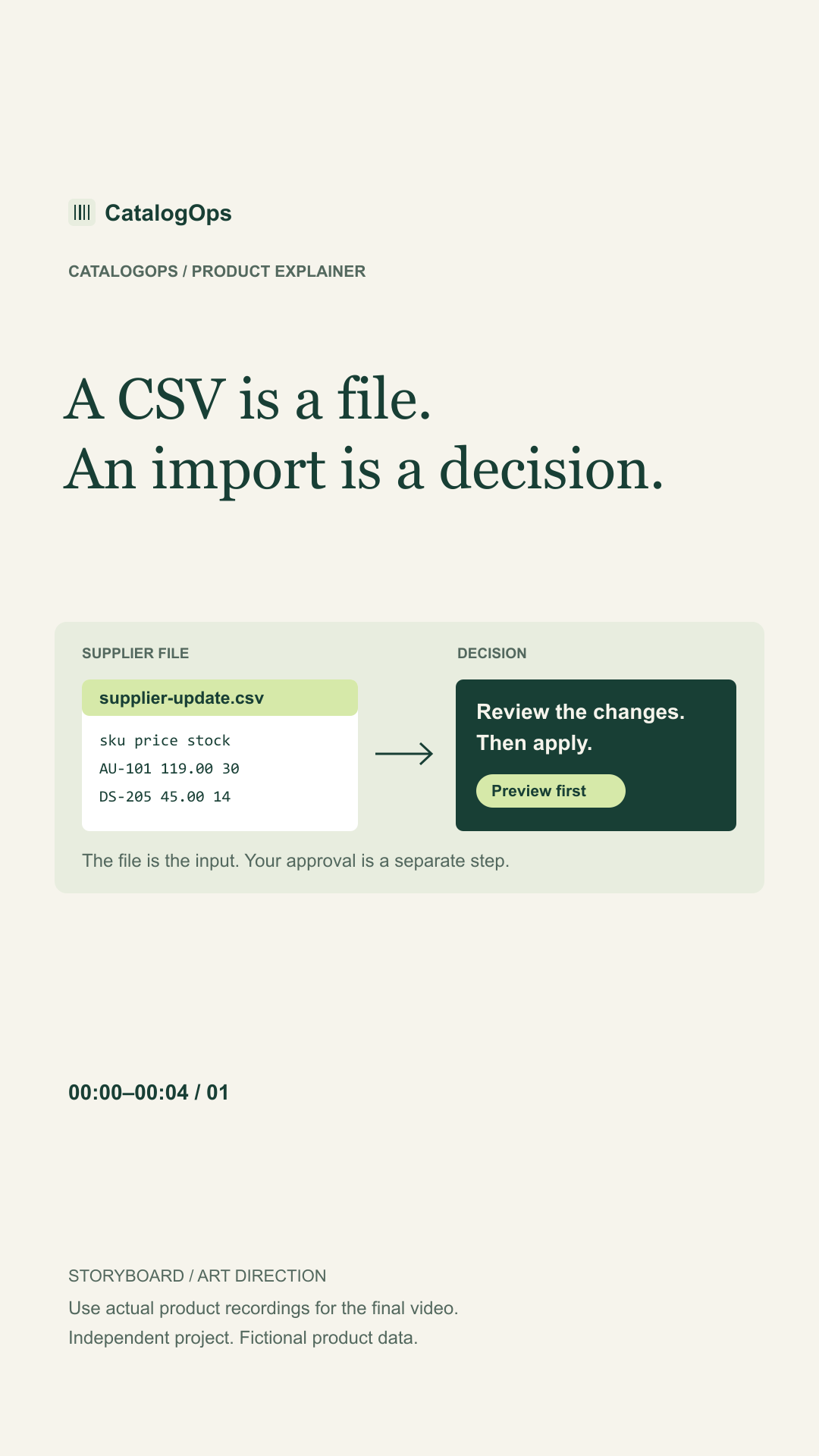
A supplier file arrives. It contains new stock levels, revised prices and a few new products. The next action looks obvious: import it. But opening a CSV successfully does not tell you whether its rows are valid, whether they match the right products or what an update will do to your catalogue. Those are separate questions. A deliberate import workflow answers them before anything is applied.
Start with product identity
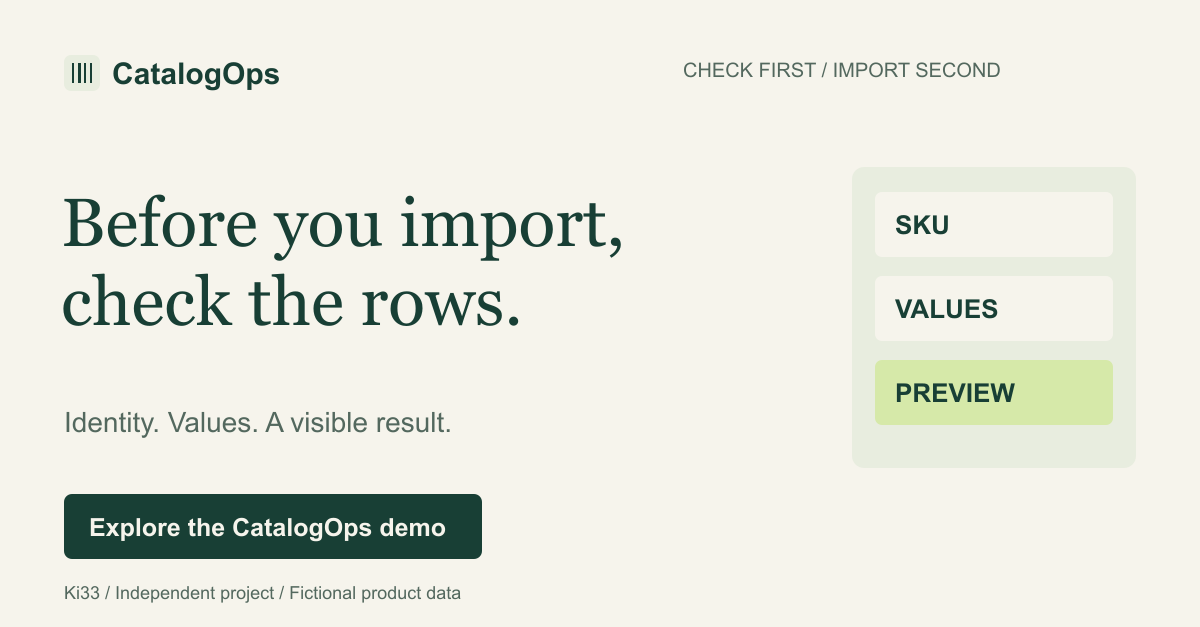
Before reviewing a price change, establish which product the row describes. Names can change, and different products can have similar names. In CatalogOps, the SKU is the matching key: an existing SKU updates its product, while a new SKU adds a product.
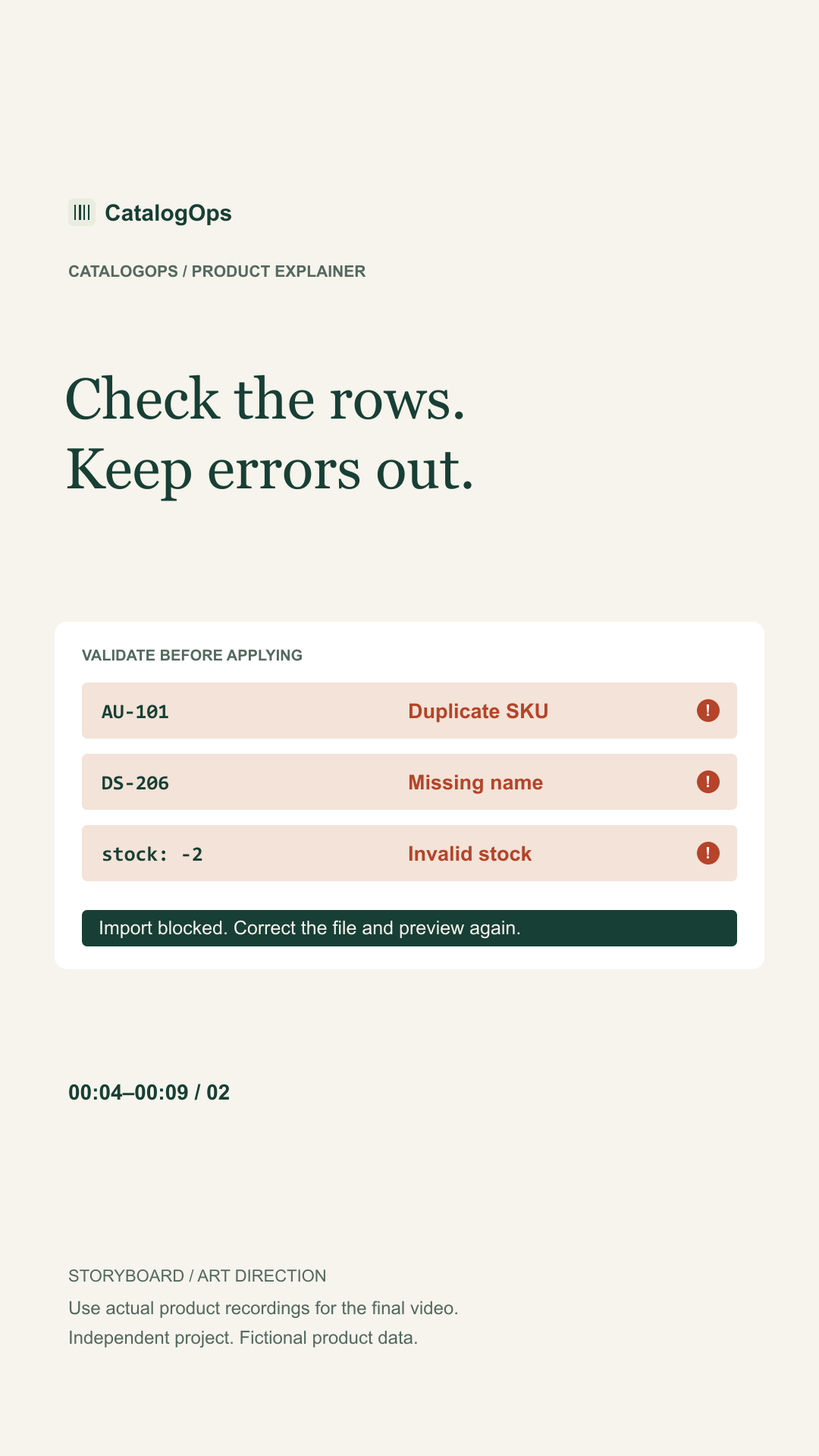
That also makes duplicate SKUs inside the incoming file worth checking. Two rows that point to the same product can carry conflicting instructions. Treat that as a problem to resolve in the source file, rather than a detail to discover after importing.
Validate the values, not just the column headings
The sample CSV uses five columns: sku, name, category, price and stock. Having those headings is a useful start, but each row still needs attention. A name can be missing. A price can use an invalid format. Stock can be negative or contain text where a whole number is expected.
CatalogOps includes a deliberately invalid sample so this behaviour can be explored directly. It contains a repeated SKU, an empty product name, a price with excessive decimal precision, negative stock and a stock value written as “ten”. The point is to make errors visible while there is still an opportunity to correct the file.
Separate the preview from the decision to apply
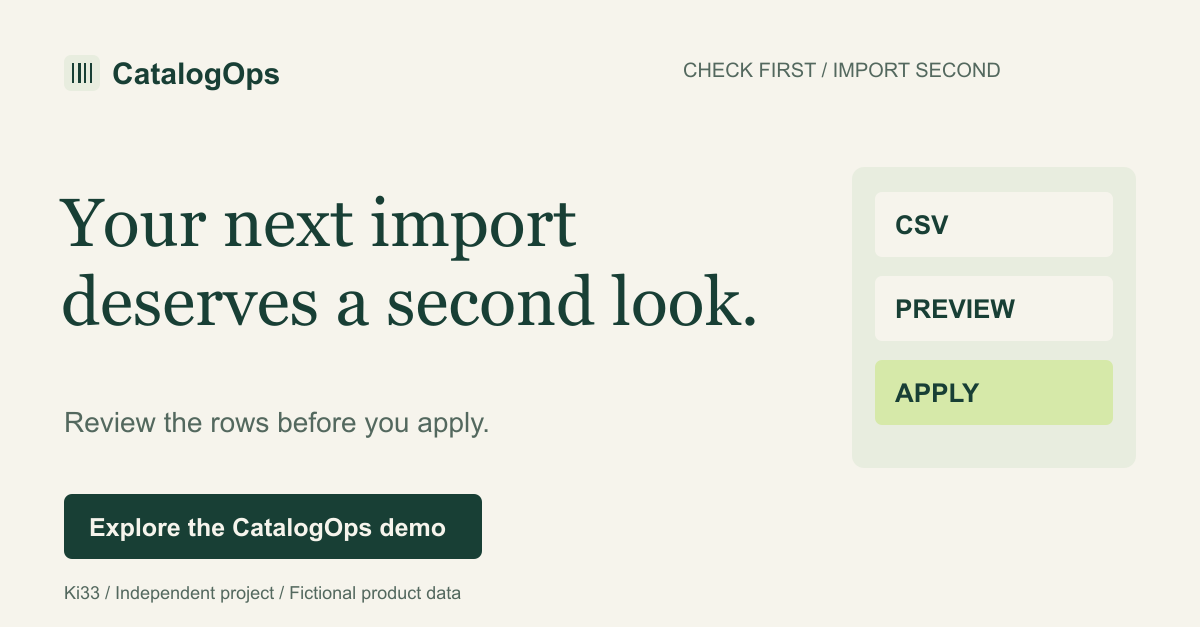
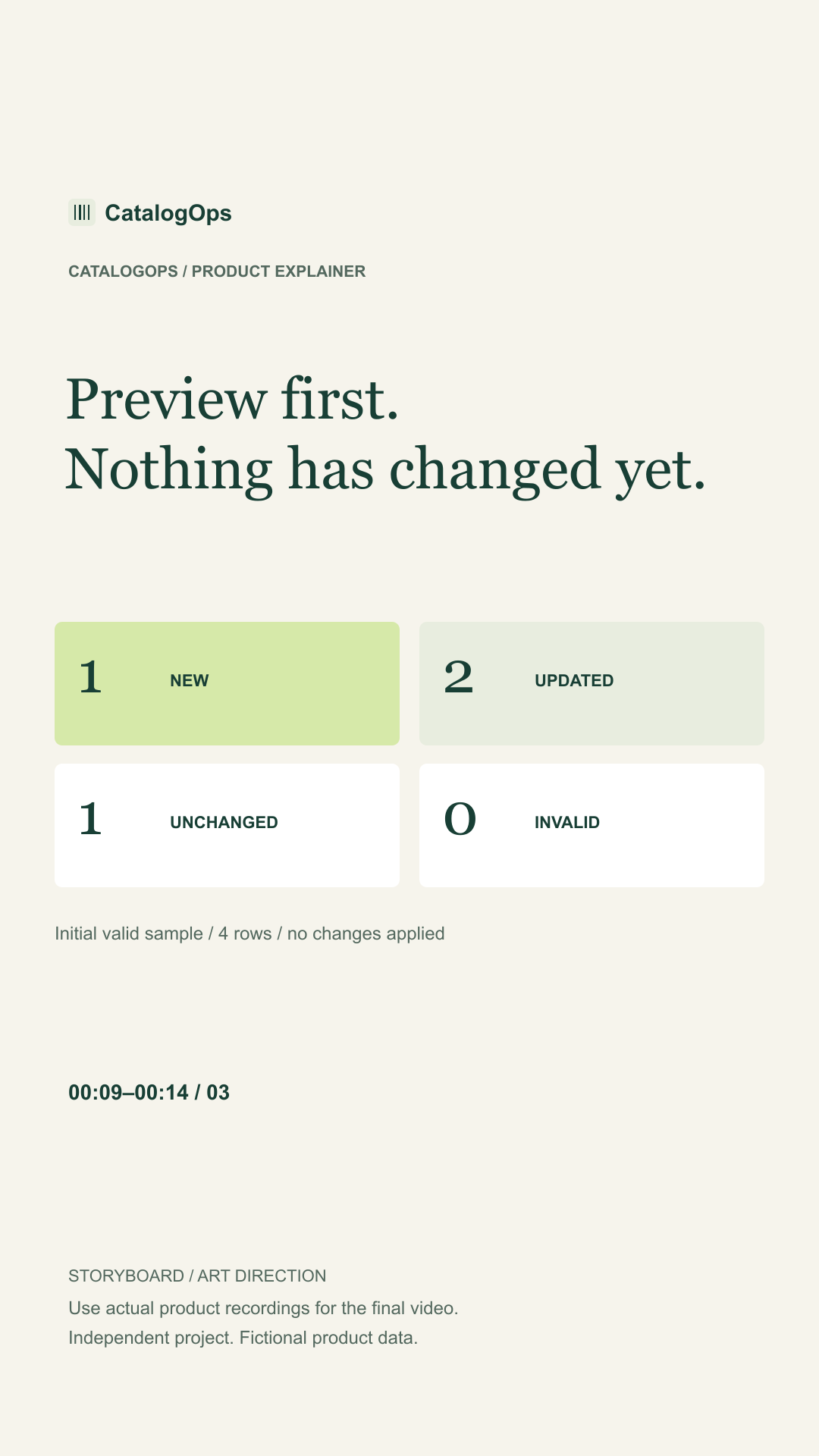
A preview should answer a simple question: what would happen if this file were applied? It should not quietly perform the update. In CatalogOps, the initial valid sample is classified as one new product, two updates, one unchanged product and zero invalid rows. The catalogue remains unchanged while that preview is being reviewed.
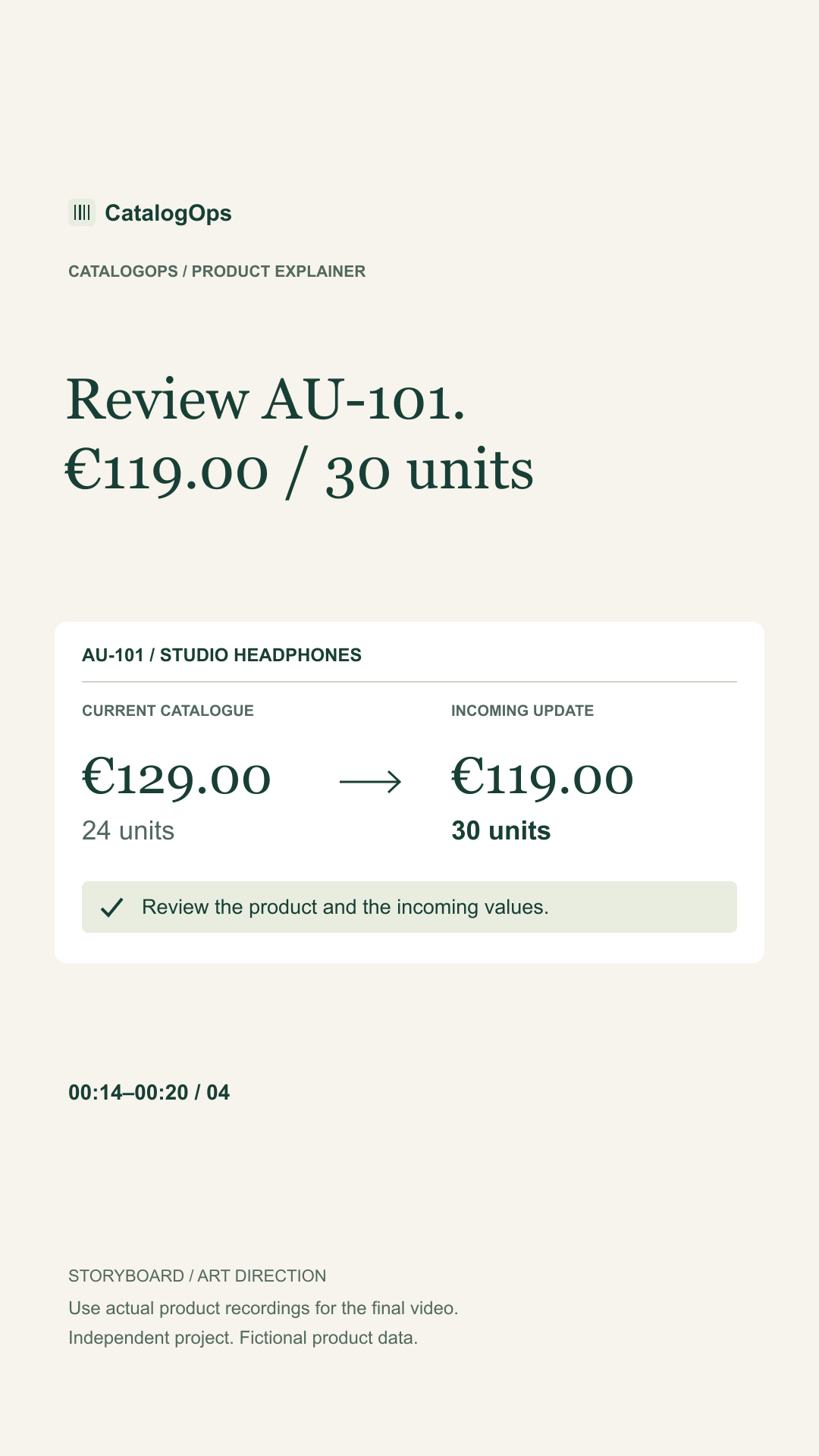
For a concrete example, the sample updates SKU AU-101, Studio headphones. Its price changes from €129.00 to €119.00, and stock changes from 24 to 30 units. These are fictional values, but the decision is realistic: the operator needs to check the intended product and the incoming values before approving the batch.
Resolve errors before applying the batch
A file that contains invalid rows should not look ready for approval. CatalogOps blocks applying a file with validation errors. Correct the source data, preview it again and review the revised result before applying it.
When a valid batch is applied, the demo records an import summary in the Activity view. This provides a place to inspect what happened after approval. It is a record of the update, not a substitute for checking the preview beforehand.
Try the same file twice
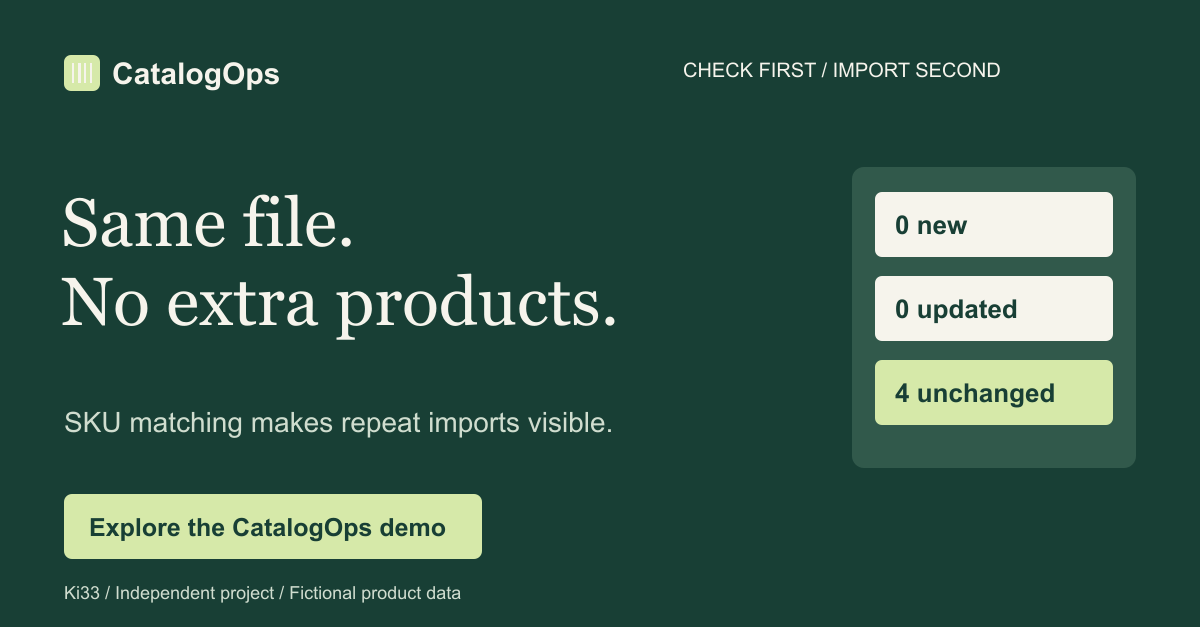
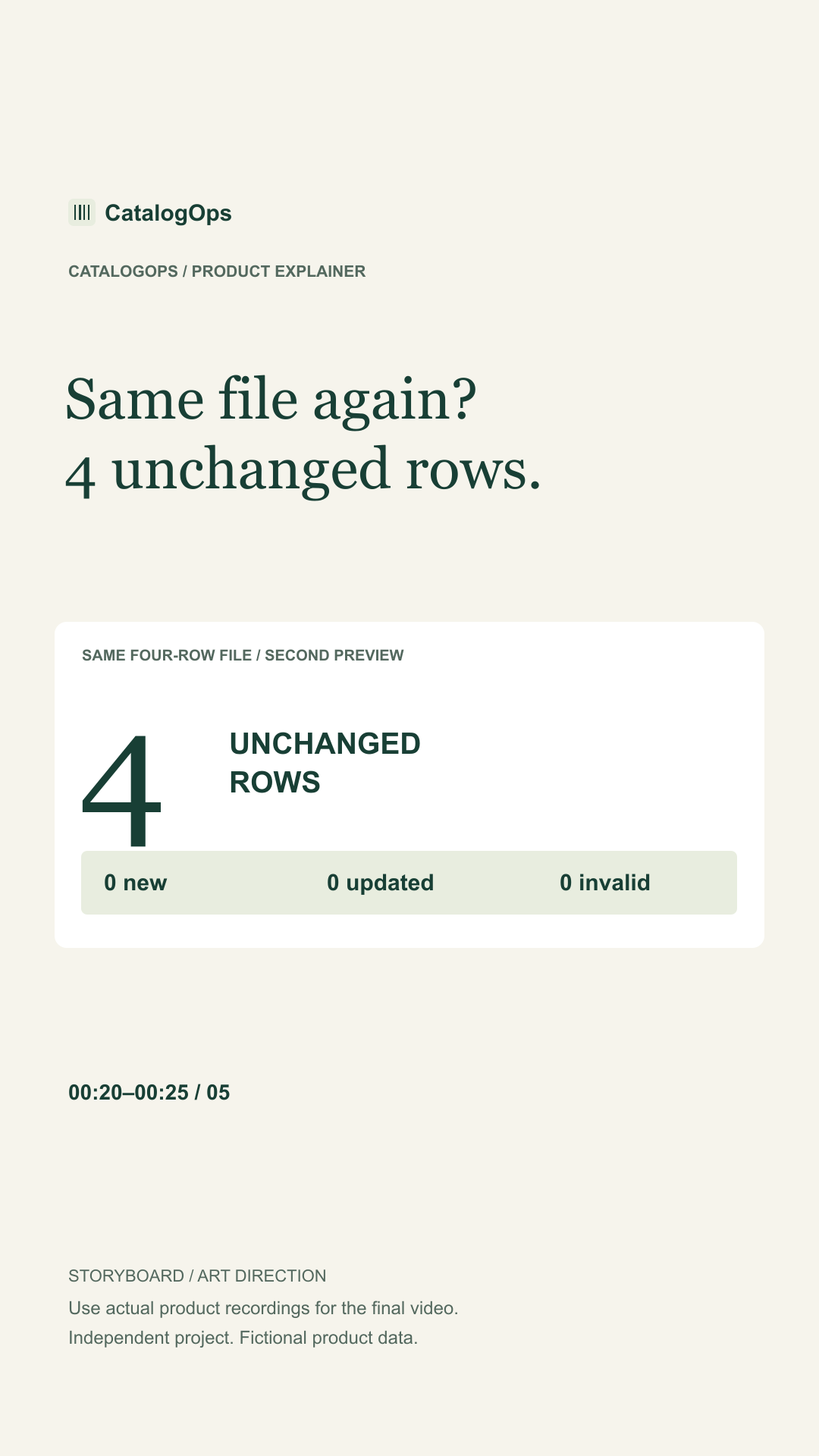
Repeated imports are a useful way to inspect matching behaviour. Start with the initial catalogue, apply the valid sample, then load that same sample and preview it again. In this example, the second preview shows zero new products, zero updates and four unchanged rows.
This is why the SKU rule matters beyond the first import. An unchanged source file is matched against existing products instead of being treated as a new set of products each time. If you deliberately change a price or stock value in the file, that is a different update and should be reviewed as such.
Explore the workflow yourself
Open CatalogOps and choose “Try a sample import”. Preview the valid file before applying it. Then explore the error sample and compare what the interface allows. You do not need a live store or a sign-up to try the public demo.
CatalogOps is an independent portfolio project. The Netlify version runs locally in the browser with fictional data, and imports stay on that device. A PHP/PDO and SQLite implementation is available separately from the project page. The public demo is not a hosted PHP application, a payment service or an ERP integration.
Before you apply
- Confirm the matching key and check for duplicate SKUs.
- Check required values, price format and stock values.
- Review new, updated, unchanged and invalid rows.
- Correct errors and generate a fresh preview.
- Apply the valid batch deliberately, then inspect its activity record.
SEO metadata
Title: Product CSV imports: checks to make before applying an update
Description: A practical guide to SKU matching, row validation and import previews, illustrated with the CatalogOps browser demo and fictional product data.
Suggested slug: product-csv-import-checklist